
Gemini can run your Google Business Profile now. Here’s how to set it up.
What connecting the two actually does, what a business notebook is, why the button may be missing, and what to do with the search keywords it hands you.
Founder, Cursive Media
- Read time
- 13 min read
- Updated
TL;DR
- Once connected, Gemini can change your hours, contact info, and posts, and draft review replies. Google says nothing publishes without your sign-off, and every post in our test waited for a confirm button. It won’t publish a review reply for you.
- To connect, sign in at gemini.google.com with the personal Google account that manages the profile and type @Google Business Profile into a prompt. A company Workspace email, Keep Activity turned off, and the gradual rollout are the usual reasons it doesn’t appear.
- The business notebook is a NotebookLM notebook (Google renamed NotebookLM to Gemini Notebook in July 2026), set up for your business. It builds its picture of you from your profile and your website. If its summary or keyword list keeps missing a service you sell, check those two first. One of them may be telling Google the wrong thing.
Jump to: How to set it up · Using the business notebook
Your Business Profile has always had one front door. You sign in at business.google.com, or open the profile card in Search, and click through screens to change your hours, add a photo, write a post, or answer a review.
Gemini is now a second front door. Once the two are connected, you ask for things in a sentence: add water heater repair to my services, what did people search to find me last month, write a post about the holiday hours. Gemini goes into the profile and does it.
Two separate things arrived together here, and most of the confusion around this feature comes from treating them as one.
The connection is the permission. Gemini gets access to read your profile and make changes to it, and that is what the headline is describing.
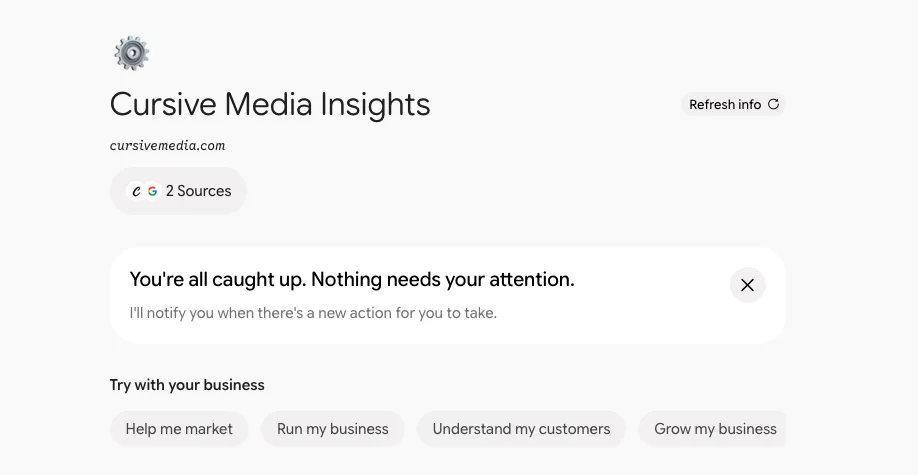
The business notebook is a NotebookLM notebook that Gemini builds for you afterward, named after your business. Google renamed NotebookLM to Gemini Notebook on July 16, 2026, and notebooks made in Gemini sync with it. It starts from two things, your profile and your website, and keeps a running list of what needs your attention. It’s the more interesting half, and it has the stricter rules about who’s allowed one.
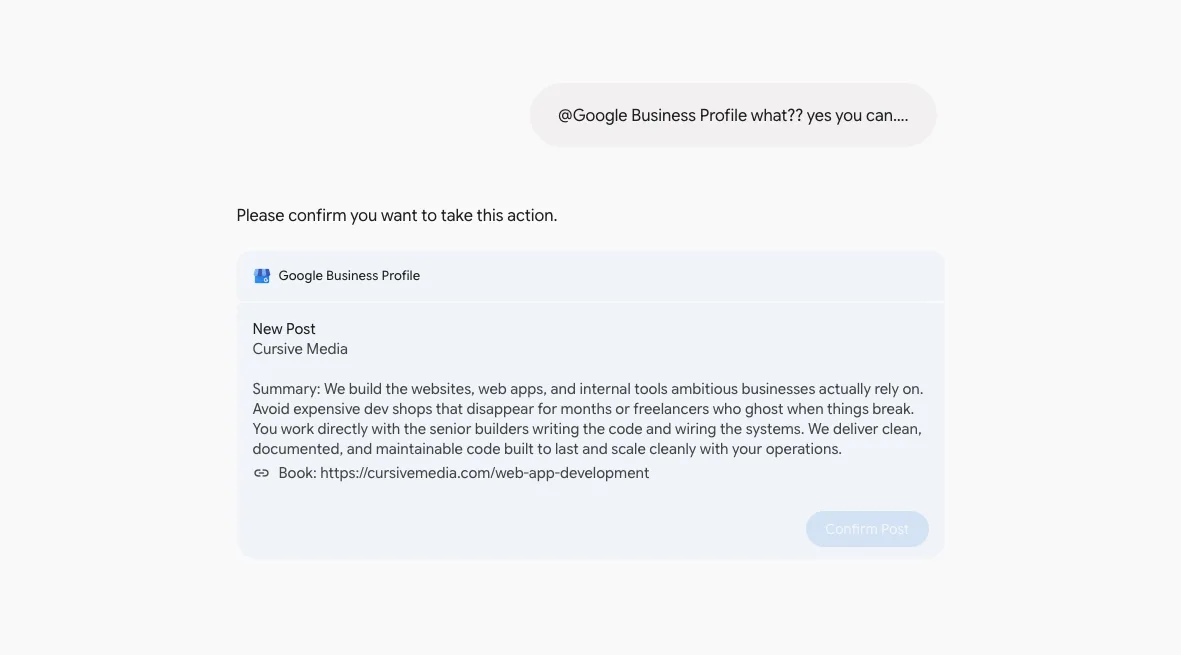
One word in "run your profile" is carrying more than it looks. Gemini does the typing; you do the approving. In our run, every change came back as a confirmation card with the full text on it, and nothing reached the live profile until we pressed the button. There’s also one job it won’t finish for you at all, even with the button, and that was the first genuine surprise in our own run.
What it can change, and what it only drafts.
Google announced the Business Profile connection and business notebooks on June 10, 2026, rolling out globally except the EEA and UK. The Help Center page is where the real detail lives. Once connected, Gemini can update your hours, contact info, attributes, action links, and menus. It can pull your reviews, draft replies, and create, schedule, publish, or delete Update, Offer, and Event posts. It can summarize what customers are saying. And it can show you your performance metrics and the search keywords people used to find you.
Read that list carefully, because the verbs matter. For reviews, Google says "draft or delete replies." It does not say post.
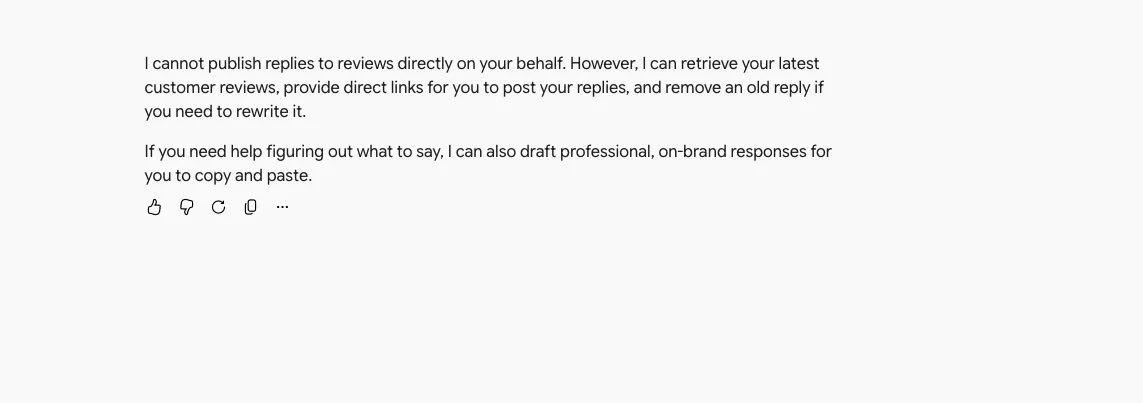
That is exactly what happened to us. We asked Gemini to reply to a review and it said it could not publish replies on our behalf. It would fetch the reviews, draft a response for us to paste, hand us the direct link, and delete an old reply if we wanted to rewrite one. We pushed back. It apologized, then said the same thing in different words: the one thing it can’t do is hit submit on a new reply.
Posts are different. Gemini wrote three, showed each one in full with its link, and waited for "Confirm Post" before anything went live. Google’s small-business newsletter in August put it plainly, as the marketing trade site PPC Land reported: Gemini generates drafts and suggested updates only, and nothing publishes without the owner’s review and sign-off. Edits go through the same official Business Profile API, with the same trust and verification checks, as anything you type into the dashboard yourself.
We tell every client the same thing about review replies: whether AI touches them at all is your decision, not ours. Google’s design here makes that decision for you in one direction.
How to set it up.
A few minutes, if your account qualifies. If it doesn’t, the next section says why.
Google’s video makes the start of it look like one click: you sign in to Gemini, a banner invites you to create your business notebook, you press Connect. We connected the Cursive Media profile in September 2026 and that banner never came. What worked was typing @Google Business Profile into a prompt, which is why the steps below start there instead of with a banner you may never be shown.
- Step 1. Go to gemini.google.com and sign in with the personal Google account that owns or manages the profile. A Gmail address is fine. A Google Workspace work account isn’t.
- Step 2. Click into the prompt box and type @. A menu of apps opens: Calendar, Keep, Drive, Gmail, and further down, Google Business Profile. Keep typing "google bus" to filter the list, click it, and the tag drops into your prompt as a chip.
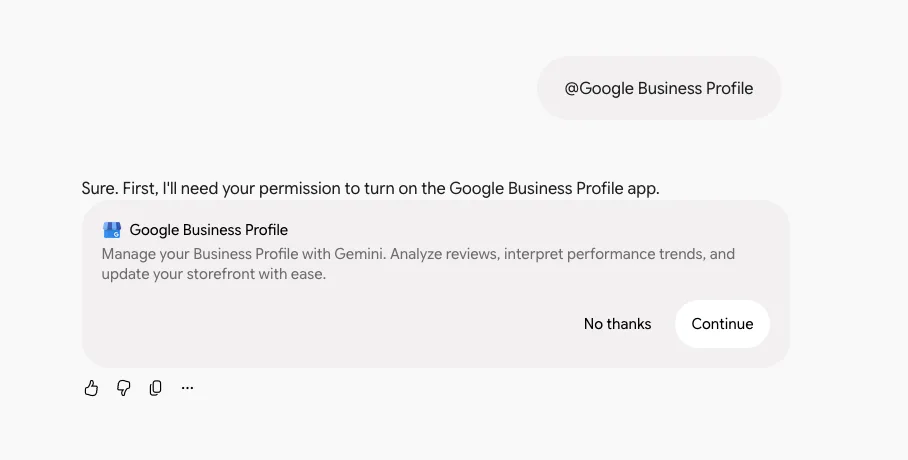
- Step 3. Type anything after the chip, "what are my current hours" will do, and send it. If the app isn’t connected yet, Gemini answers with a permission card instead of an answer. Press Continue.
- Step 4. A dialog titled "Connect Google Business Profile?" lists what Gemini will access and what it will share. Read it, then press Connect. The data section further down is about this screen.
- Step 5. Gemini answers your question, and should now offer to create your business notebook. Press Connect there too, and enter or confirm your website URL when it asks. If that offer never shows, try the tag in a new prompt. Google’s own tip is to add it so Gemini offers to set the notebook up.
- Step 6. Open the left sidebar. The notebook is under Notebooks, named after your business. Ours is "Cursive Media Insights."
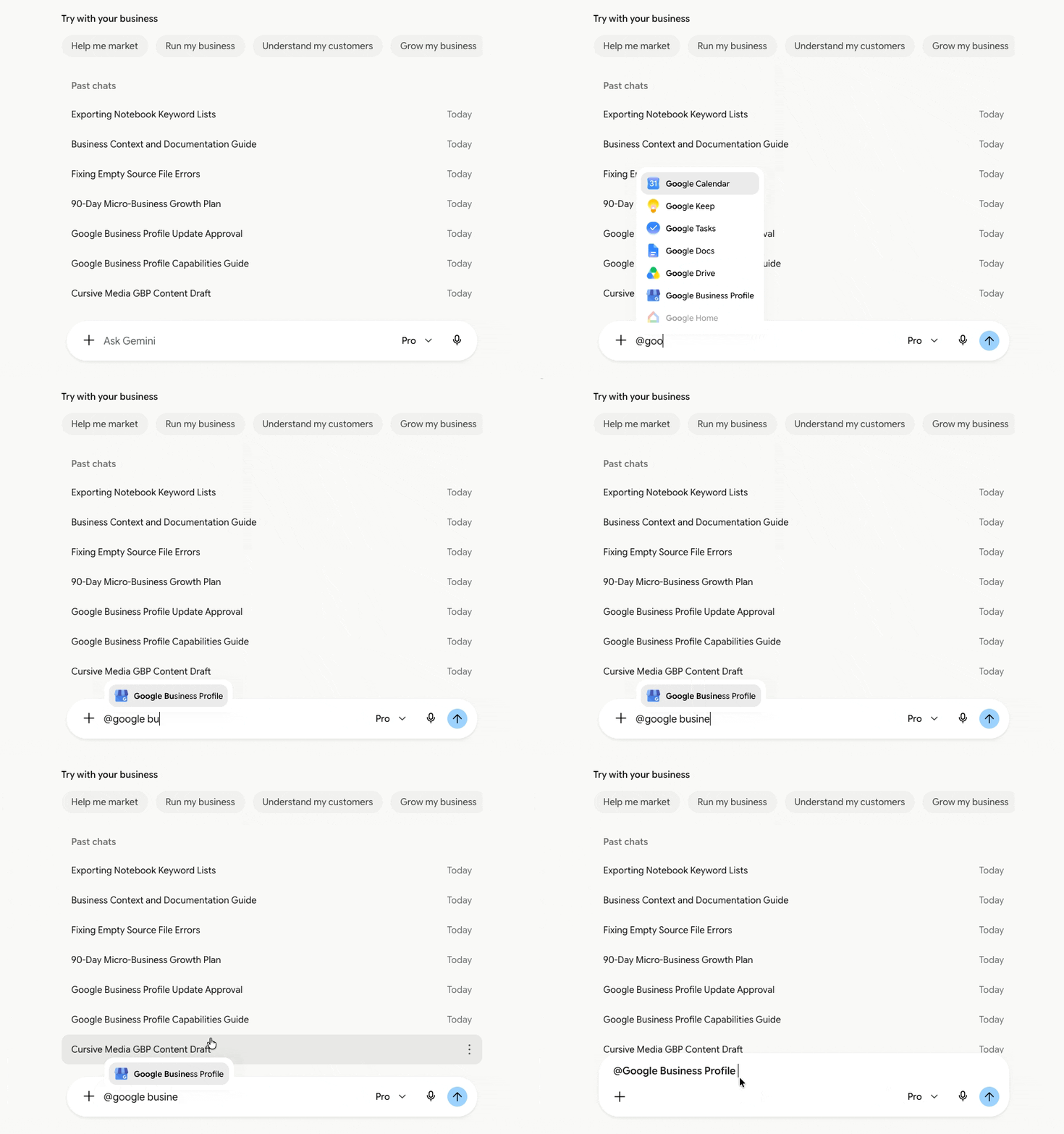
Steps 3 and 5 are where it fails for most people right now, and both fail quietly. No error, just no card and no offer.
If the button isn’t there, it’s one of these five things.
The most common experience with this feature right now is not seeing it: no permission card at step 3, or no notebook offer at step 5. Google’s requirements are specific, and the announcement post doesn’t mention any of them.
1. You signed in with your company email.
The feature needs a personal Google Account, the one that owns or manages the profile. Google says it "isn’t available if you sign in with a work or school Google Account." If your business runs on Google Workspace, that’s you, and Google’s June Small Business Bulletin lists Workspace accounts as "coming soon" with no date.
2. You have access to more than one verified profile.
The Help Center still says the feature is "not available to owners or managers who have access to more than one verified Business Profile." Google’s August newsletter narrowed that: tagging @Google Business Profile in a prompt now works for accounts that manage several businesses, and the one-profile rule applies only to creating a business notebook. Both statements are Google’s. If you manage more than one, try the tag before you give up.
3. Keep Activity is off.
Keep Activity is the Gemini setting that saves your chats to your Google account. Turn it on at myactivity.google.com/product/gemini. Gemini can’t connect to your profile with it off, and business notebooks don’t exist without it.
4. You’re in the wrong place.
As of now this only works on the Gemini website. On a phone, Google’s instructions say to go to gemini.google.com, so use your phone’s browser. The Gemini app, the Business Profile app, and the Maps app aren’t on the list.
5. You’re simply not in the rollout yet.
Google says the feature is "being released gradually and may not be available to you just yet." That is the honest explanation for a missing banner on an account that meets every other rule. It’s also why the tag is worth trying: Google’s own tip is to add @Google Business Profile to a prompt, and Gemini should offer to connect, and to create the notebook, even when nothing on screen suggested it.
The notebook builds its picture of you from two places.
When the notebook does appear, it is built from your Business Profile and your website. That’s not a guess. Google’s setup steps say to "enter or confirm the website URL for your business," and in the notebook video from the Google Business Profile channel the presenter points at the source listed under the business name and describes it as what Gemini has generated as an understanding of the business after looking through the website and the profile.
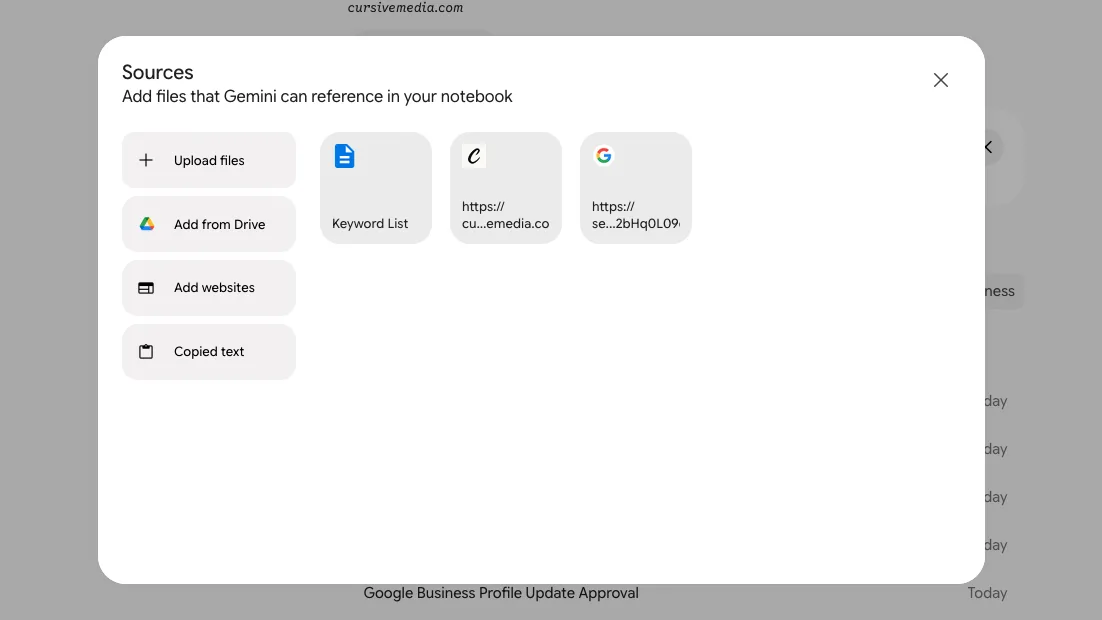
Ours is titled "Cursive Media Insights," with cursivemedia.com under it and a Sources chip. Click it and there they are: our website, our Business Profile, and one we added ourselves, a doc of the search keywords Gemini pulled from the profile. Google seeds the first two. Anything after that is yours to add.
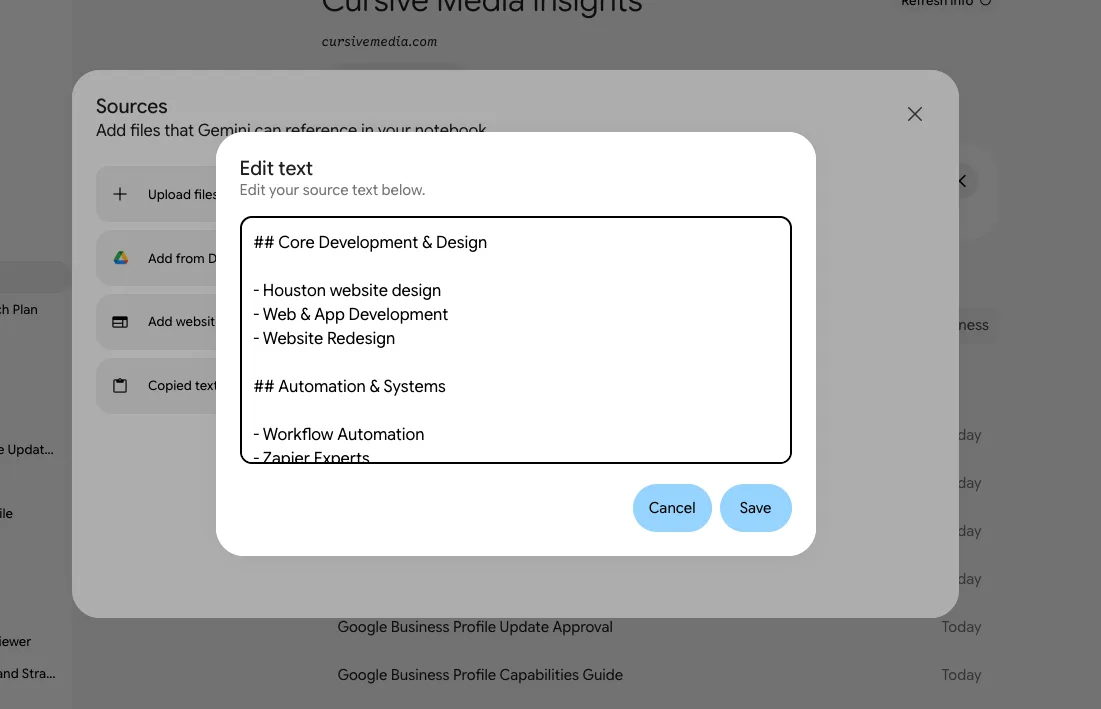
Click either source and it opens as plain text in an edit box. Ours came up as a headed list of what we do: Houston website design, web and app development, website redesign, workflow automation, Zapier, and on down the page, matching the service pages on our site. That text is what Gemini is working from when it answers about Cursive, and the box has a Save button. You can change what it thinks you are. Saving there changes the notebook’s copy only. Your website stays as it was, so fix the page too.
That chip is worth more attention than anything else in the notebook, and almost none of the coverage we read stops on it. The two sources Google puts there are the profile and the site. The notebook also remembers the chats you’ve had inside it, and in Gemini Notebook ours listed those seven chats as sources of their own. But a chat only knows what you told it. What the notebook knows about your business before you say a word comes from the profile and the site. If its suggestions describe you well, the profile and the site agree and say enough. If they describe a business you don’t quite recognize, one of those two is telling Google something wrong, and you now know which pages to open.
The notebook also takes documents. The June bulletin says you can import spreadsheets and presentations for more context, and the video shows it producing a positioning analysis from your reviews, a three-month growth plan, and a week of social captions. Those are the demo’s showpieces. The Sources and the attention list are the useful part.
Because it’s a NotebookLM notebook, you can open it at notebook.google.com too. We did, and "Cursive Media Insights" was there with the full Studio panel: Audio Overview, Video Overview, Mind Map, Flashcards, and more. We asked for an Audio Overview and got a minute-and-a-half summary of our own sources. The one thing it wouldn’t do was share. The Share button was grayed out, with the note "Notebooks that include chats from other apps can’t be shared yet." Ours has seven Gemini chats in it, so it stays on our account for now.
The attention list is the easy part. Do it.
At the top of the notebook is a "needs your attention" section. In Google’s video it flags reviews and feedback waiting for a reply, a profile post you haven’t made, and profile information that’s missing. The Help Center adds an exterior photo and a look at your performance to the list of suggested actions. Ours, the day we connected, said "You’re all caught up. Nothing needs your attention," which is what you’d hope for on a profile that answers its reviews and had just been given three posts.
Everything on that list is a five-minute job, and you should do all of it before you read another word about Gemini.
Answer every review, every time. We have a full post on how to respond to Google reviews, including the unfair ones. Fill in the missing hours or the description. Add an exterior photo if customers come to you. If it says you haven’t posted in a while, read what posts do and don’t do first, then let Gemini draft one and confirm it.
If Gemini won’t connect for you yet, our free Business Profile audit checks the same basics from the outside. It shows your rating, your review count, whether the profile is claimed, and which basics are missing. No email needed.
None of this needs us. That’s the point of the tool, and it’s good at it.
The keyword list is the part worth staring at.
Ask the connected Gemini what search keywords are driving traffic to your business and it will show you the actual terms people typed into Google Search and Maps before they found you. The same report lives in the profile’s performance section, where the metrics around it are easy to misread. Here it arrives as a plain list.
Put your services list next to it.
Google ranks local results on three things: relevance, distance, and prominence. Distance you can’t change. Prominence is slow. Relevance is Google matching your profile to what someone searched, and it only matches what you told it. So the keyword list is the closest thing Google hands you to a readout of relevance: these are the searches its matching already connected you to. If the terms are the services you sell, the profile is doing its job. If a service you sell is nowhere on that list, treat it as a lead, not a verdict. Google updates the list at the start of each month, and a term only shows up when your profile appeared for it, so a service nobody searched for that month can’t be on it. Check a few months before you decide. If it’s still missing, there are two places that can be broken.
The keyword list tells you what you’re matched to. It doesn’t tell you where you land. For that, our free Google Maps rank checker shows your spot at 9 points around your address and the top 10 businesses Maps shows there. No email needed.
When a client isn’t showing up for a service they sell, we look at the profile first. Primary category, secondary categories, the services list. That’s the five-minute check, and Gemini can make those edits for you once you know what to ask for. Then we look at the website, and that’s where the tool stops helping. We wrote up the three factors in detail if you want the whole picture.
When it gets your business wrong, check the website too.
Put the two previous sections together. The notebook builds its picture of your business from the profile and the site. The keyword list shows you which searches Google already connects you to. When the picture is off, or the list is missing the work you actually want, the profile is usually the smaller half of the problem in our client work.
The site is the bigger half. A service that lives only in a photo, a PDF, or a line in the footer isn’t something Google can match. Google’s own August guidance, again as reported by PPC Land, says hours, services, and menus belong on the page as readable text, not baked into images. The same newsletter says its generative features ground on web pages and Business Profile records. We covered what Google says about showing up in AI search from the primary source. Short version: the profile and the site are the two records Google reads, and the notebook is the first place you can see what it concluded from them.
That’s the line between what you fix yourself and what you might want help with. Categories, hours, photos, a reply. That’s you. A site that doesn’t say what you sell, on real pages, in words Google can read, is search work. It starts with an audit of where you stand and the searches you want to win. Your profile and your site are public, so you don’t need to bring anything but the services you want to be found for.
What it still can’t do.
The tool executes. It does not decide. That’s our read after one run, and it matches what local search practitioners said the week it launched. One profile specialist quoted in PPC Land’s coverage put it this way: clients often don’t know which categories to pick, or why their profile doesn’t appear in the next town over, and "this tool doesn’t provide strategy or analysis. It helps you implement your ideas more quickly. If you don’t know what to enter, you’ll still have the same problem even with Gemini." Another warned that if the profile is messy, AI just moves faster with messy inputs.
Handy, but you still have to know what to tell it.
To be fair to Google, that’s how it’s built and how Google describes it. It is a very good pair of hands for the chores of running a profile, and the chores are the half most businesses skip.
Before you connect: the data question.
The connect dialog is specific about what it does. Gemini will "access and manage your Google Business Profile data, like your business info, reviews, and performance metrics," and it will "share information from this chat, including your prompts, Gemini’s responses, and the general area of your location if relevant." It notes that when Gemini answers using other connected apps, your profile content may be shared if it’s part of the conversation.
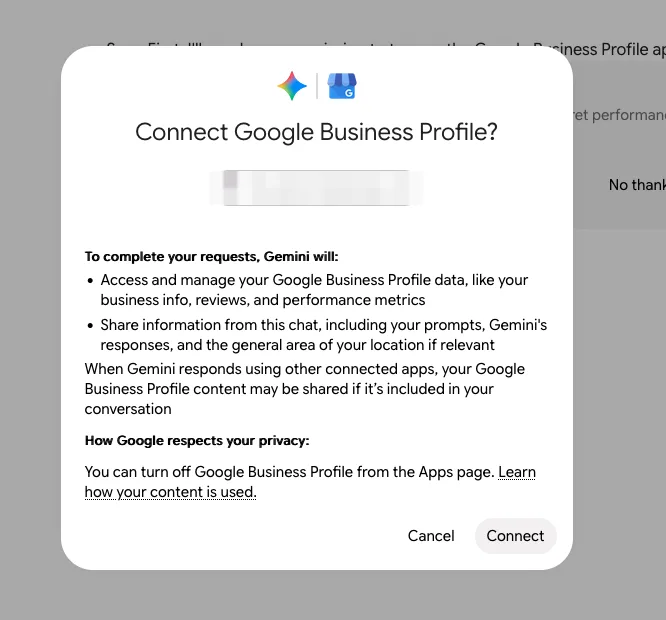
Keep Activity has to be on, which means your chats are saved to your Google account. You can turn the app off from the Apps page at any time. What Google retains after you disconnect is a question its Privacy Hub answers, not this post. If you’re deciding whether a reviews feed and a performance report are things you want inside an AI chat at all, we wrote about putting customer data into AI tools and the answer depends on what’s in it.
What to do this week.
- Run the six setup steps above. If it stalls at the permission card or the notebook offer, the five reasons are why. Keep Activity and the wrong app, you can fix in a minute. A missing banner, try the tag. If the tag brings up nothing either, you may still be outside the rollout, and that you wait out. A work account, or a notebook for more than one profile, you can’t change today.
- Open the notebook and click the Sources chip. Open each source and read the text. If it lists services you don’t sell, or misses ones you do, fix it there and then fix the page it came from.
- Clear the attention list. Replies, hours, photo, post.
- Ask for your search keywords. Put the list next to your services.
- If the source text is wrong or the keyword list is missing what you sell, the profile is a five-minute fix and the site is not. That’s what the call below is for.
Founder, Cursive Media